What bookmarks are for
A bookmark is a link, with a title, listed in the bookmarks panel beside the pages. In a court book of hundreds of pages, the bookmarks work as a second index that is always on screen: one click opens a section, a document or an exhibit, wherever the reader is. Courts that take electronic bundles usually ask for them.
What courts ask for
Courts differ on how bookmarks are titled. Some examples, each covered in our guides:
| Court | What it asks |
|---|---|
| Federal Court of Australia (GPN-eBOOKS) | A bookmark for each document with its tab number and a brief description, such as “01. Originating application”, and each annexure bookmarked within its affidavit. |
| England and Wales (the judiciary’s e-bundle guidance) | Every section and significant document bookmarked with a short description that includes the document’s page number. |
| Supreme Court of Victoria (eCourt book guide) | Each separate document bookmarked with its short-form name, such as “Contract dated 6 April 2020”. |
| Irish Court of Appeal (information notice of April 2020) | Bookmarks that follow the index, so each document can be reached from the index or the bookmarks. |
| Singapore Supreme Court (Practice Directions 2021) | As many bookmarks as there are references in the index, each named the same as its reference. |
| Supreme Court of Canada (Guidelines) | Bookmarks that mirror the table of contents, with at least each Part bookmarked, and a sub-bookmark for each passage highlighted in print. |
| Court of Appeal for Ontario (General Practice Direction) | A bookmark for each document with its tab number and name, such as “Tab 1 – Notice of Appeal”. |
Follow your court’s practice note and any orders in your case. Where nothing is set, title each bookmark as the index describes the document.
1. Plan the levels and titles
Before adding any, decide what the list will look like. For a court book, two or three levels usually do:
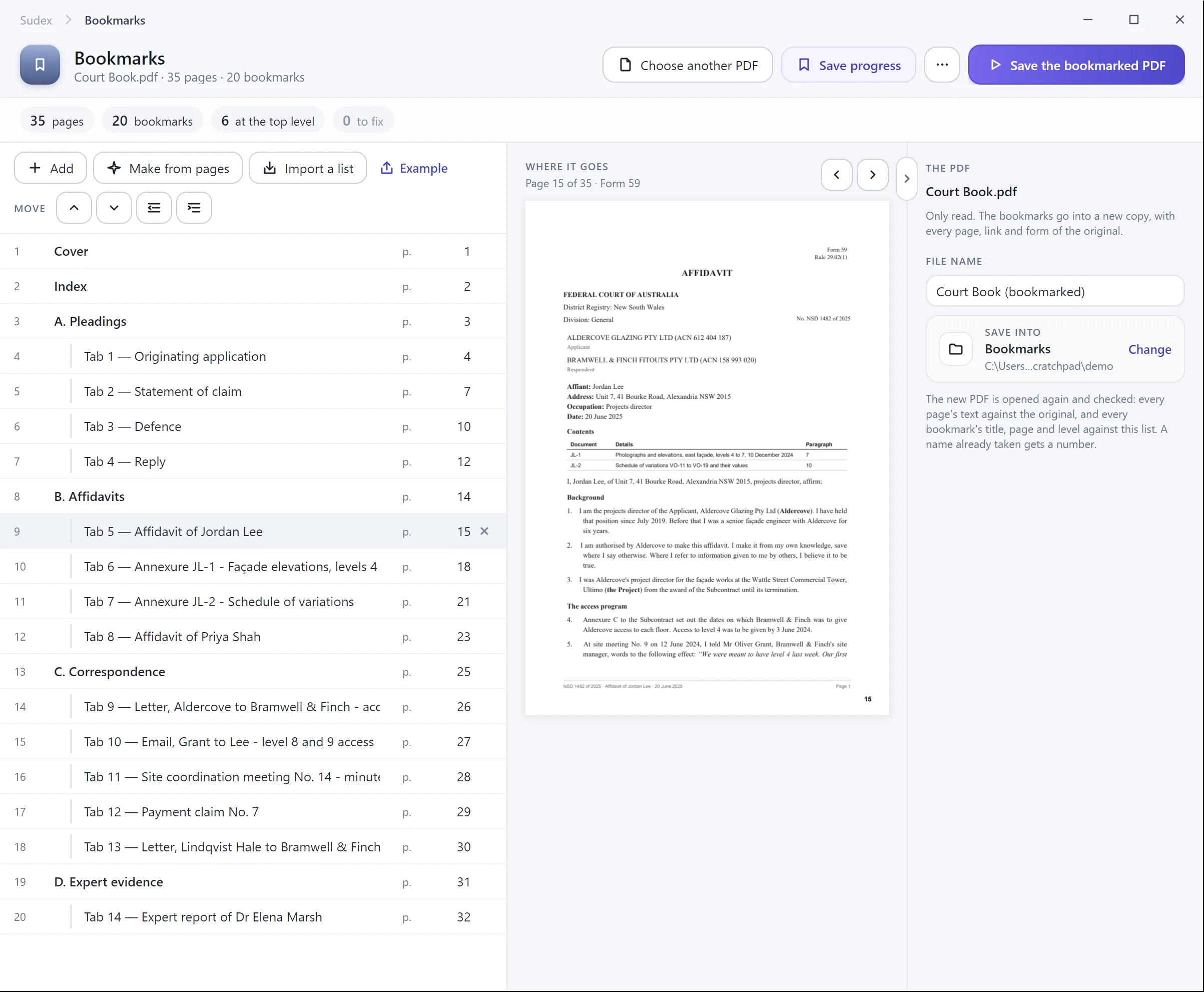
- Top level: the index, then each section, such as Pleadings, Affidavits and Correspondence.
- Second level: each document in its section, in the same order as the index.
- Third level, if needed: the exhibits or annexures to an affidavit, under that affidavit.
Title each bookmark as the index describes the document, with the same tab number, so the two can be matched at a glance. Keep titles short enough to read in a narrow panel, and decide whether each one opens the document’s divider or its first page, then do the same throughout.
2. Make the bookmarks
From Word. If the PDF is made from a Word document, such as submissions or an index with dividers, use Word’s heading styles for the titles. When you save as PDF, choose Options and tick Create bookmarks using Headings, and Word makes a bookmark for each heading.
By hand in Adobe Acrobat. Adobe’s help on bookmarks sets out the steps:
- Open the Bookmarks panel from the navigation bar.
- Go to the page the bookmark should open.
- Select the bookmark the new one should go under. If none is selected, the new one goes at the end of the list.
- From the Options menu in the panel, choose New Bookmark, and type its title.
To correct a bookmark’s page later, select it, go to the right page, and choose Set Bookmark Destination from the Options menu. Rename Bookmark is in the same menu.
3. Nest and order them
To put a bookmark under another, select it and drag it directly under its parent. The page itself stays where it is in the document; only the list changes. Deleting a bookmark deletes the bookmarks nested under it too, though no page is deleted.
When you are done, the list should read like the index: the same documents, in the same order, with the same titles.
4. Make the PDF open with them showing
Unless the file says otherwise, a PDF reader usually opens it with the bookmarks panel closed, and a reader may not know the bookmarks are there. In Acrobat, open Document properties and choose the Initial View tab. Set the Navigation tab option, which decides which panel shows when the file opens, to the bookmarks panel with the page. Save, close and reopen the PDF to see it.
5. Check every bookmark
- Click each bookmark and confirm it opens the right page, not the page before or after.
- Count them against the index: every document has one, and none is there twice.
- The titles match the index and follow what your court asks for.
- Check again after any change to the pages, such as a late document slotted in, since bookmarks after the change can end up pointing to the wrong page.
With Sudex