Why not renumber
By the time a late document turns up, the bundle’s page numbers are in use: in submissions, chronologies, witness outlines, the judge’s notes and counsel’s marked-up copies. If you number the whole bundle again, page 245 becomes page 251, and every one of those references is wrong. So a late document is added in a way that leaves every existing number where it was.
The usual ways
- Insert it with lettered numbers. The new pages go where the document belongs and take the number of the page before them with a letter: 45A, 45B. A new document after tab 12 becomes tab 12A. Nothing else moves.
- Add it at the end of the bundle. The new pages are numbered on from the last page. The judiciary’s general guidance on electronic court bundles for England and Wales says pages added after the bundle has gone to the judge should go at the end, that the court should be asked how best to provide them, and that, unless directed otherwise, the judge should get both the new section and, separately, the revised bundle, because the judge may already have marked up the original.
- Add it at the end of its section. Where each section is numbered on its own, A1, B1, new pages at the end of a section don’t move any other number. PD 27A puts new documents at the end of the relevant section for later hearings in family cases other than financial remedy proceedings. See our guide to family court bundles.
- A supplementary bundle, with its own index, if the court prefers to keep the filed bundle as it is.
The steps below are for inserting with lettered numbers. Adding at the end is simpler: number the new pages on from the last, and add their lines to the end of the index.
1. Check what your court wants
Read your court’s rules and any directions in the case. If they say nothing, ask the court or agree an approach with the other parties before you change a filed bundle.
2. Find where it goes
Find the document’s place in the order, usually by date within its section, and note the page and the tab it follows: say page 45, the last page of tab 12.
3. Number the new pages
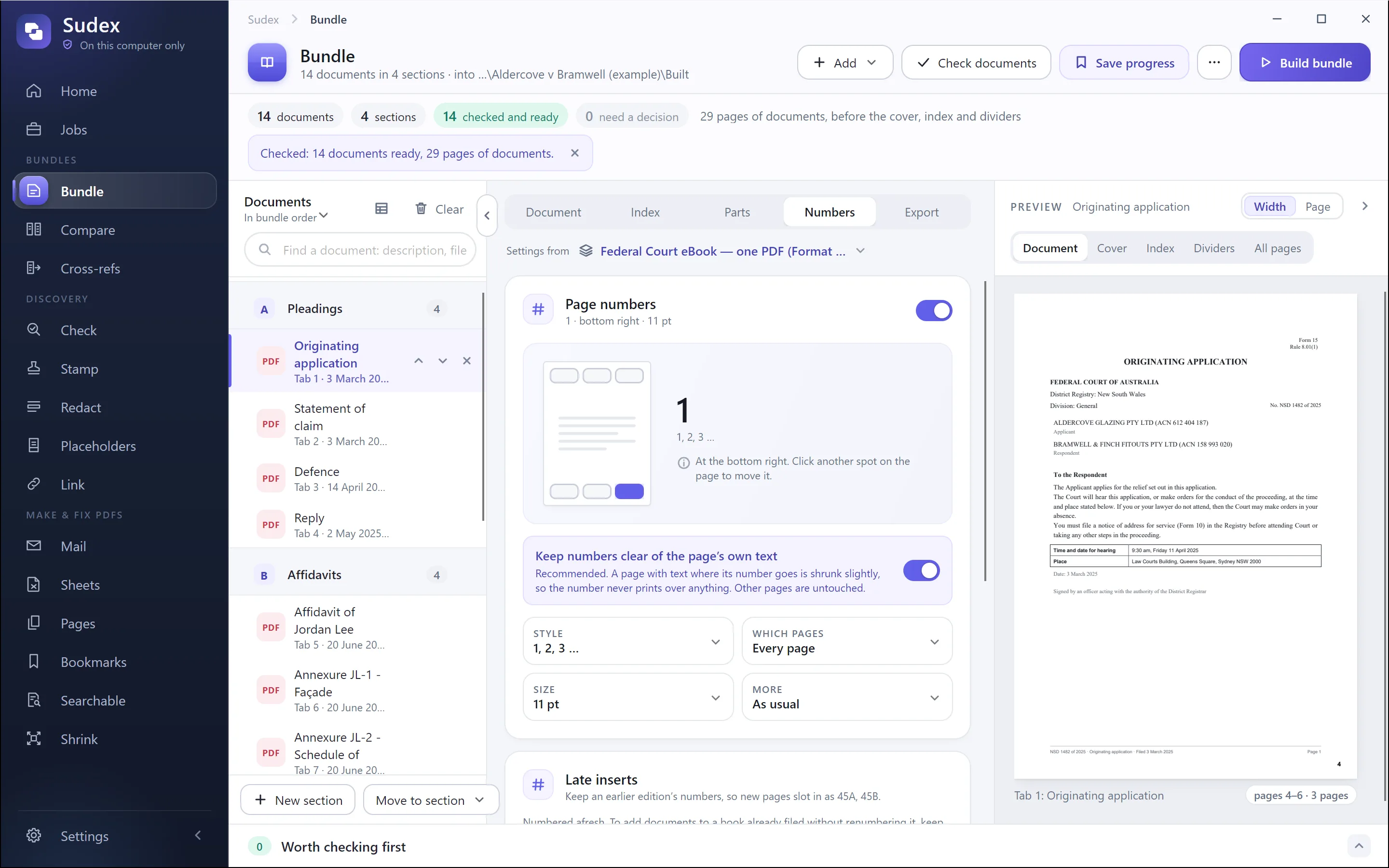
Convert the document to PDF and stamp its pages 45A, 45B and so on, in the same place and style as the rest of the bundle. A header and footer tool numbers pages 1, 2, 3, so lettered numbers usually have to be typed as text, one page at a time. If something is already filed at 45A, carry on from it: 45B, 45C. If two documents go in at the same place, give the second the next letters, and the tabs 12A and 12B.
4. Insert the pages and set their labels
Insert the new pages after page 45 in a copy of the filed bundle. Then set their page labels to 45A, 45B, so the PDF reader shows the same numbers as the pages: in Acrobat, All tools, then Organize pages, then Page labels, using a prefix for the inserted pages. Check the page after them still shows 46.
5. Update the index, links and bookmarks
- Add a line for tab 12A, with its description, date and pages 45A–45B, in its place in the index.
- Link the new line to the document. If the index has grown onto a new page, check every link after it still lands in the right place.
- Add a bookmark for the new document, in its place.
- Check that every other page number, index line and bookmark is unchanged.
6. Send it with a note of the changes
Name the new edition so no one confuses it with the first, and say what was added, and where. If the court wants the new pages on their own as well, send those too. Keep a copy of each edition exactly as it was sent.
With Sudex