Why PDFs get too big
Typed text takes very little room in a PDF. What makes a court book or an exhibit too big to file is nearly always pictures:
- scanned pages, which are pictures of paper, often scanned at a high resolution or in colour when black and white would do;
- photographs from a phone or camera, kept at their full size;
- plans and drawings saved as large images.
So the way to make a PDF smaller is to redraw its pictures less finely. Only if that isn’t enough, or the limit is a number of pages, do you need to split it.
1. Find the limit and work on a copy
Check the court’s current limit on its own website or in its practice note, as limits change. Some are in megabytes, some in pages, and some depend on how the file is sent. Check too what the court wants done with a file over the limit, because splitting isn’t always the answer. For example:
- the Federal Court of Australia’s eLodgment portal takes files of up to 30 MB, but its technical guide has a bigger eBook given to the Registry as a single volume, not split into parts: see our guide to Federal Court eBooks;
- in England and Wales, the judiciary’s guidance on e-bundles says an email to a justice.gov.uk address, with its attachments, can be at most 36 MB, and a bigger bundle can go to the Document Upload Centre by prior arrangement with the court: see our guide to e-bundles;
- the Supreme Court of Canada takes electronic documents of up to 75 MB, and the Court of Appeal for Ontario files of up to 512 MiB and 500 pages, with anything bigger filed in volumes: see our guide to both courts.
Shrinking and splitting both make a new file. Work on a copy, so the PDF you were given, or the one already served, stays exactly as it was.
2. Shrink the pictures
In Adobe Acrobat, Reduce PDF file size saves a smaller copy: choose Menu, then Save as Other, then Reduced Size PDF. For more control, Acrobat Pro’s Optimized PDF, under the same menu, has an Images panel where you choose how finely pictures are kept.
- About 150 dots per inch is usually enough for scans and photographs read on screen and printed on A4 or Letter.
- Keep plans, drawings and photographs that matter in detail finer, at 200 to 300 dots per inch.
- Watch the other panels. Adobe’s optimizer settings include discarding bookmarks, document tags and links to other documents, and flattening form fields. Leave those off unless you mean them, or the smaller copy can lose what the court asked for.
Avoid printing the PDF to a new PDF to make it smaller. That makes a new file from scratch, and usually loses the bookmarks and the links.
3. Check the smaller copy
- It has the same number of pages as the original.
- Scanned pages are still searchable: search for a word you can see on one.
- Photographs and small print, such as figures in a table or handwriting, are still readable at 100% and when printed.
- The bookmarks and links still work.
If it is now under the limit, you are done. If not, split it.
4. Split what is still too big
In Acrobat, Split is under All tools, then Organize pages. You can split by number of pages, by file size, or at the top-level bookmarks, and Output options sets the folder and the names of the new files.
- Split where a new document starts, if you can, so no document runs from one part into the next. Splitting at the top-level bookmarks does this when every document has one.
- Name the parts so they sort in order and say how many there are, such as “Court book - part 1 of 3”.
- Keep the page numbers running on. If part 1 ends at page 450, part 2 starts at 451, so a page reference still finds one page. The index should say which part each document is in. See our guide to pagination.
- Mind the links. A link from the index in part 1 to a page now in part 2 no longer works inside one file. Some courts don’t allow links between separate files at all, such as the Supreme Court of Canada and the Court of Appeal for Ontario, so check what yours asks for.
5. Check every part
- Each part is under the limit, with some room to spare: portals and email can count sizes slightly differently from your computer.
- Every page of the original is in exactly one part, in order, with nothing repeated or missing.
- Each part opens, its bookmarks go to the right pages, and its links work.
- The file names and the index tell the reader which part to open.
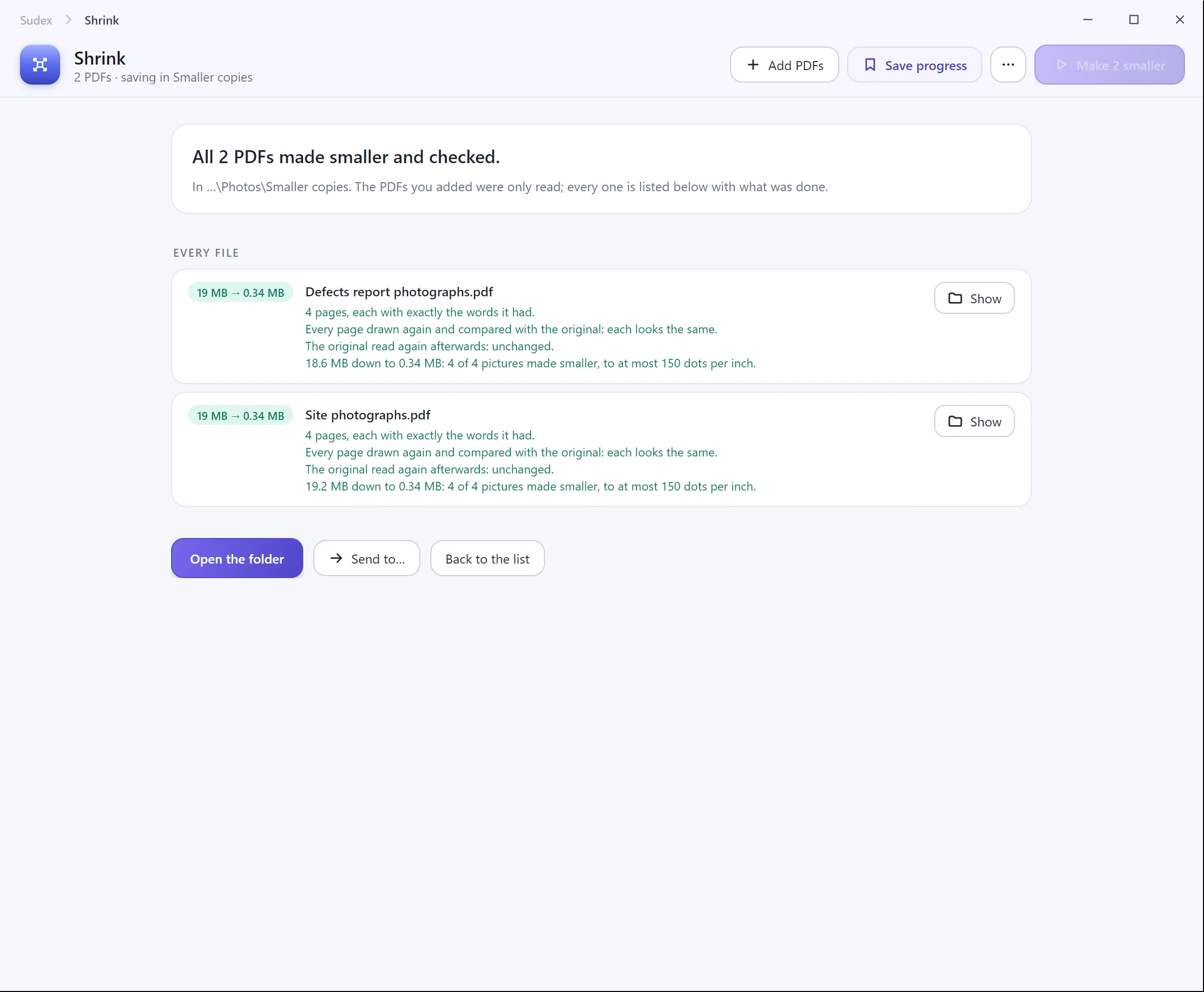
With Sudex