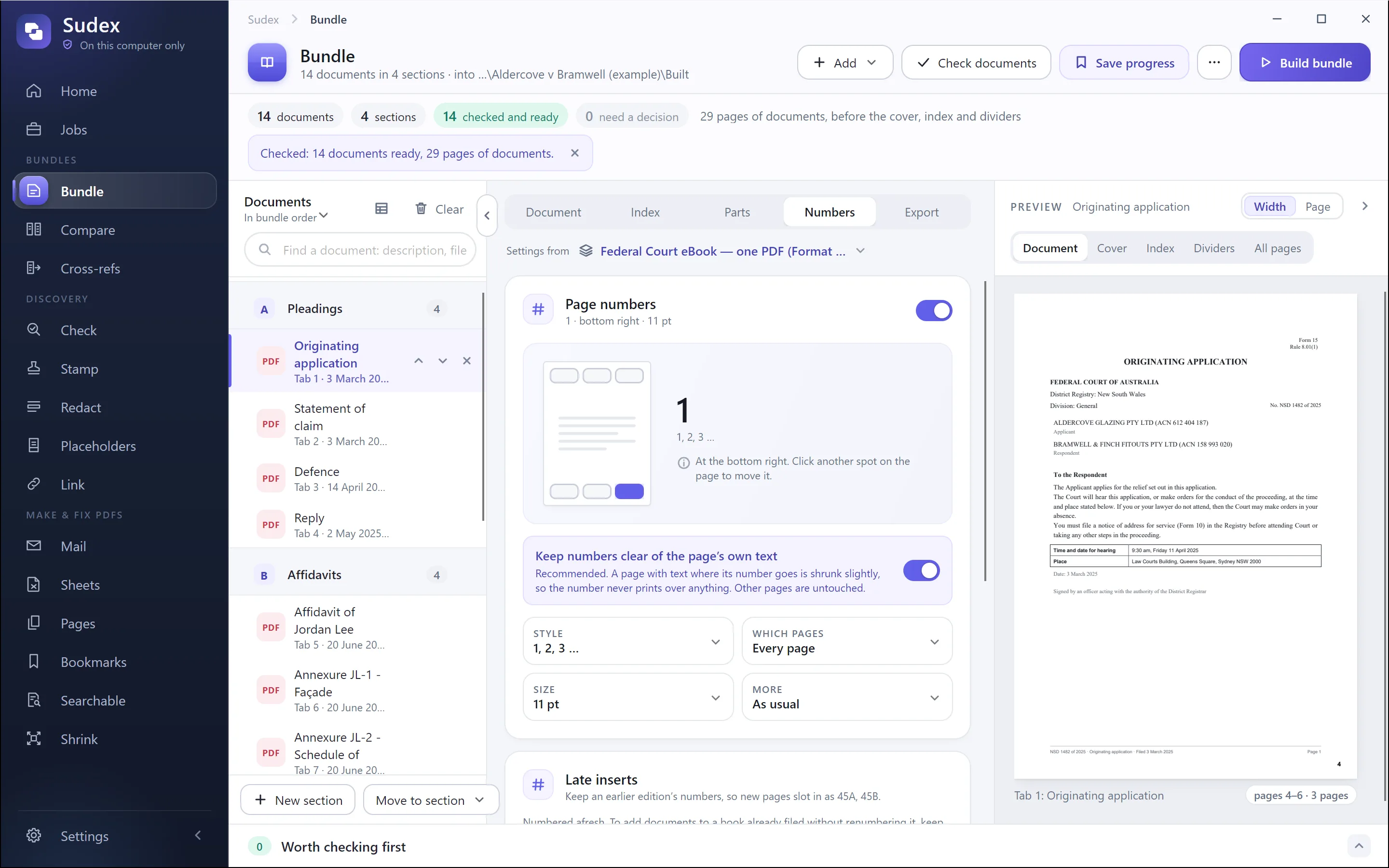
Why the numbers must agree
When the number printed on a page, the number in the reader’s page box and the number in the index are the same, “page 245” means the same page to the judge, to counsel and to the other side, on screen or on paper. When they differ, people lose time at the hearing finding the page being talked about.
Courts say so in their rules. The general guidance on electronic court bundles for England and Wales asks for computer-generated numbering from page 1 on the first page, so that the pagination matches the PDF’s numbering. The Federal Court of Australia asks, for an eBook or appeal book in one PDF, for the PDF’s display page numbers to match the sequential numbers on each page. See our guides to the UK general guidance, Federal Court eBooks and family court bundles.
1. Settle the contents and order
Finish the list of documents, and their order, before you number anything. Adding, removing or moving a document after numbering changes every page number after it. If a document has to be added once the bundle has been filed, don’t renumber: see adding a late document as 45A.
2. Decide where the numbers start
Courts differ, so check yours. The usual choices are:
- From the very first page, the cover or index included. The stamped numbers then match the reader’s page numbers without any more work. The UK general guidance asks for this.
- From the index, with the cover left unnumbered.
- From the first document, with the cover and index unnumbered, or the index numbered i, ii, iii.
- Again in each section, such as A1, A2, then B1, B2. PD 27A asks for this in family cases other than financial remedy proceedings.
3. Choose how the numbers look
- Letters before the number, if your court or your firm uses them, such as “CB 245” for a court book.
- Zeros in front, only if asked for: “0245” sorts well but reads less easily.
- The place on the page, often the bottom right or the top centre, as your court asks, in a plain font big enough to read on screen.
- Clear of the page’s own text. Many documents already carry their own page numbers and footers. The bundle’s number must not print over them, or over a signature or a date.
4. Number every page in one run
Combine the whole bundle into one PDF first, then number it in one go, so there are no gaps or repeats between documents. Don’t number by hand: computer-generated numbering is what courts expect.
For one PDF, our free page-numbering tool does this in your browser, with nothing uploaded: choose any letters before the number, the first number and the corner, and leave a cover unnumbered if you need to.
In Adobe Acrobat, the Header and footer tool does this: open the PDF, select Edit, then Header and footer, then Add. Put a page number in the box for the place you chose, set the font and margins, and use the preview to look for numbers that clash with the page’s own text. Other PDF editors have a similar tool, and menu names change between versions.
Look at the result page by page, at least at every change of document. Where a number sits on top of text, move it, make the margin bigger, or shrink that page slightly so the number has room.
5. Make the PDF’s page numbers match
A PDF reader numbers pages from 1 at the first page, whatever is printed on them. If your stamped numbers start somewhere else, set page labels, so that typing 245 in the reader’s page box goes to the page stamped 245.
In Acrobat, select All tools, then Organize pages, then Page labels. Choose a page range and begin a new section with a style, a first number and any prefix: for example, Roman numerals for the index, then 1, 2, 3 from the first document. As Adobe’s help says, page labels only change what the reader shows; they don’t print anything on the page, so you need both steps.
6. Fill in the index
Write each document’s first page, or its first and last page, into the index from the numbered bundle, not from a draft. Our free index template has a Pages column for this. If the index is numbered with the bundle and grows by a page while you do this, every number after it moves by one, so number again and check again.
7. Check it
- Type a few page numbers into the reader’s page box, near the start, the middle and the end, and confirm the page shown carries that number.
- Check the first page of every document against its entry in the index.
- Check there are no gaps or repeats, especially where documents meet.
- Check landscape pages, and pages with their own footers, for numbers in the wrong place or over text.
- If the index is hyperlinked, click a few links and check where they land. Our guide to hyperlinked indexes explains how.
With Sudex